
Fix your nbn, whatever type you have
Every nbn connection type has its own box and its own lights — and the lights nearly always name the problem. Find your type below (or work out which type you have first), check the lights against the picture, and follow the steps. Still stuck? Send us a photo of the lights — it usually tells us exactly what's wrong and saves you a truck visit.
Prefer to be walked through it? Try the guided troubleshooter →Answer a few questions with pictures — it checks your cables, reads your lights with you, runs the right restart, and if it's still broken, packages everything up to send us on WhatsApp.FTTP — Fibre to the Premises
Your fibre ends at an nbn supplied connection box on the wall. Its lights tell you almost everything — including one that should stay dark.
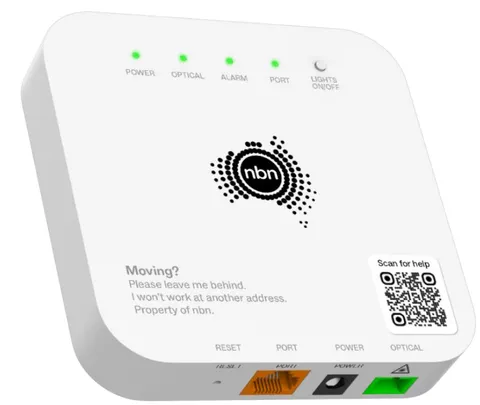
| Light | Healthy | Problem sign | What to do |
|---|---|---|---|
| Power | Solid green | Off, or red | Off: check the box’s power switch, the wall outlet and your safety switch. Red: it’s running on backup battery — if there’s no blackout at your place, treat it as a fault and tell us. |
| Optical | Solid green — talking to the nbn network | Red, flashing or off | The fibre signal isn’t arriving. Check the thin fibre lead hasn’t been crushed, kinked or unplugged, then contact us — this usually needs a network ticket, and any technician visit for a network fault costs you nothing. |
| Alarm | Off — dark is correct here | Lit | The Alarm light is the one light that should stay dark. If it’s on, note the colour, photograph the box and contact us — don’t bother restarting first, it won’t clear a real alarm. |
| Port (UNI-D) | Solid or flashing — your router is connected and passing traffic | Off | Check the ethernet cable between the Port (UNI-D) socket and your router’s WAN port is clicked in at both ends; try a different cable if you have one. |
Work through it in this order
- No lights at all? Before assuming the worst, check the Lights On/Off switch — the current nbn boxes let you turn the indicators off, and a switched-off panel looks exactly like a dead box.
- Power light on? If not, sort power first — nothing else matters until it’s green.
- Optical light solid green? If it’s red or off, that’s the network side — photograph the lights and contact us.
- Alarm light lit? That one should be dark. Note its colour and tell us — a restart won’t clear a genuine alarm.
- Port light on? If not, reseat or swap the ethernet cable to your router.
- Restart in the right order: both boxes off, wait 60 seconds, nbn box on first, let its lights settle, then the router.
FTTN — Fibre to the Node
There’s no nbn box with FTTN — your modem plugs straight into the telephone wall socket, so the modem’s own lights are the diagnosis.
| Light | Healthy | Problem sign | What to do |
|---|---|---|---|
| Power | Solid green | Off | Check the power plug and wall outlet, and that the modem’s power button is actually on. |
| DSL (sync) | Solid — the line is synced to the node | Flashing endlessly, or off | The line can’t sync. Check the phone cable is firm in both the wall socket and the modem’s DSL port, unplug every other device or filter from every phone socket in the house, and try another wall socket if you have one. |
| Internet | Solid or flashing — you’re online | Off or red while DSL is solid | The line is up but the session isn’t. Restart the modem; if it stays red after 10 minutes, contact us — that end is ours to fix. |
Work through it in this order
- Power on, then watch the DSL light — it should go from flashing to solid within a few minutes.
- DSL won’t hold? Unplug everything else from every phone socket (old phones, filters, alarms) and test again.
- DSL solid but Internet red? Restart the modem once, then contact us.
- Speeds fine in the morning but rough at night, or dropouts in rain? Tell us — those patterns point at the copper, and we can push for a line fix or check your free fibre upgrade eligibility.
FTTB — Fibre to the Building
Same setup as FTTN — modem straight into the phone socket — but the fibre ends in your building’s comms room, so building-wide problems are a real possibility.
| Light | Healthy | Problem sign | What to do |
|---|---|---|---|
| Power | Solid green | Off | Check the power plug, outlet and power button. |
| DSL (sync) | Solid — synced to the building’s equipment | Flashing endlessly, or off | Check the phone cable at both ends and unplug other devices from phone sockets. If neighbours are also down, the building’s comms room may have lost power — flag it with building management or strata. |
| Internet | Solid or flashing — you’re online | Off or red while DSL is solid | Restart the modem; if it stays red, contact us. |
Work through it in this order
- Run the same checks as FTTN above — power, DSL, cables, other devices unplugged.
- Ask a neighbour: if their internet is down too, it’s likely the building’s equipment, not your unit — tell building management and us.
- Just moved in? The socket in your unit may not be the active one — try each phone socket.
FTTC — Fibre to the Curb
A small nbn box (the NCD) sits inside near a phone socket and powers the fibre gear in the street — which is why its lights matter and why patience after a restart pays off.
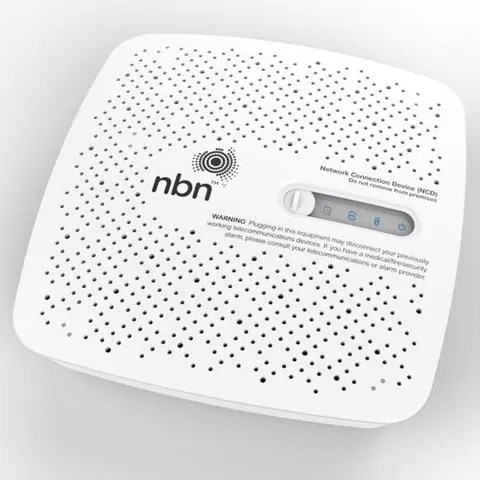
| Light | Healthy | Problem sign | What to do |
|---|---|---|---|
| Power | Solid blue | Off | Check the power plug and outlet. |
| Connection | Solid blue — powering the nbn equipment in the street pit | Off or red | Check the phone cable between the NCD and the wall socket is firm at both ends, then power cycle and give it up to 20 minutes — the street gear literally reboots off your power. |
| DSL | Solid blue — talking to the network | Off or still flashing after 20 minutes | Power cycle once more; if it still won’t settle, photograph the lights and contact us. |
| LAN | Solid or flashing — modem connected | Off | Reseat or swap the ethernet cable between the NCD and your modem’s WAN port. |
Work through it in this order
- Check the phone cable NCD→wall socket first — it’s the whole connection.
- Power cycle the NCD, then wait: Connection and DSL can take up to 20 minutes to go solid blue. Don’t restart it again in that window.
- Lights solid but no internet? Restart your modem, and check the ethernet between NCD and modem.
- Still stuck? Photo of the NCD lights to us — the pattern usually names the fault.
HFC — Hybrid Fibre Coaxial
Your nbn box screws onto the coax (pay-TV style) wall point. Four lights on the front tell a very readable story; the ethernet port on the back has its own little link light.
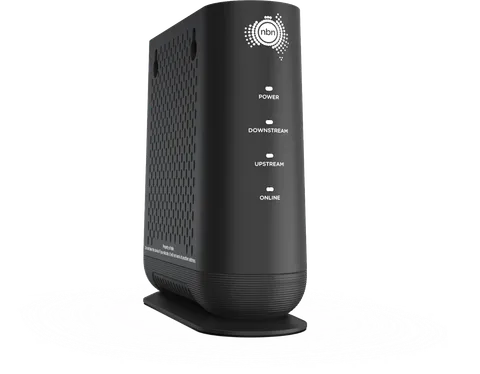
| Light | Healthy | Problem sign | What to do |
|---|---|---|---|
| Power | Solid green | Off | Check the power plug and outlet. |
| Downstream / Upstream | Both solid — locked onto the network | Flashing | Flashing means searching. Right after power-on that’s normal — all lights flash briefly as a self-test, then can take 10–20 minutes to settle. Check the coax cable is finger-tight at the wall point and the box, then wait it out. |
| Online | Solid green — you’re connected | Off while Downstream/Upstream flash | No connection to the network. If it persists past 20 minutes, photograph the lights and contact us. (Downstream/Upstream flashing while Online stays ON is a firmware update — leave the box alone until it finishes.) |
| Link (port light, back of the box) | Green — modem connected | Off, or yellow | Off: reseat or swap the ethernet cable to your modem. Yellow: the cable works but is an old type that caps your speed — swap it for a CAT5e or CAT6 lead. |
Work through it in this order
- Coax first: unscrew and re-tighten the cable at the wall point and the box — finger-tight, no tools. A loose coax is the #1 HFC fault.
- Power cycle and wait up to 20 minutes for Downstream, Upstream and Online to go solid. Flashing during that window is normal.
- Online solid but no internet? Check the Link light and the ethernet to your modem, then restart the modem.
- A yellow Link light on a fast plan is money wasted — swap to a CAT5e/CAT6 ethernet cable.
Fixed Wireless
Your roof antenna talks to an nbn tower; an indoor nbn box feeds your modem. The ODU light is the antenna’s health, Signal is its strength.
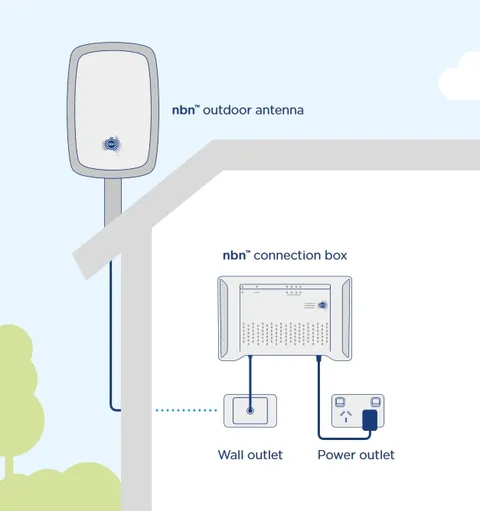
| Light | Healthy | Problem sign | What to do |
|---|---|---|---|
| Power | Solid green | Off | Check the power plug and outlet. |
| Status | Green (may flash while starting) | Red | Power cycle the box and wait a few minutes. If it stays red, contact us — that needs a network case. |
| ODU | Solid or flashing green — antenna link healthy | Red | The link to your roof antenna is down — usually an antenna or cabling issue that needs a technician. Photograph the lights and contact us; a network-fault visit costs you nothing. |
| Signal | Green — strong signal | Amber or red | Weak signal. Note the weather — heavy rain and storms genuinely dent wireless links. If it’s amber/red in clear weather, contact us and we’ll investigate alignment or congestion. |
Work through it in this order
- Power cycle the indoor box and give it a few minutes — healthy is Power solid, Status green, ODU green, Signal green.
- Any red light that survives a restart is a case for us — photo of the lights, please.
- Slow in wild weather but fine after? That’s the physics of wireless — but if it’s always slow, ask us about the newer Fixed Wireless tiers, 4G/5G home internet or Starlink.
Sky Muster satellite
Your dish talks to a satellite 36,000 km up, so restarts take longer and weather matters more — both are normal, not faults.
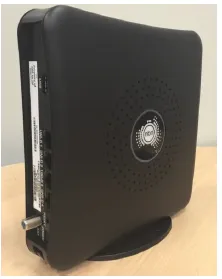
| Light | Healthy | Problem sign | What to do |
|---|---|---|---|
| Power | On | Off | Check the power plug and outlet. |
| Status ring | Solid blue — online | Flashing, or red | Flashing means it’s connecting — allow 6–8 minutes for network entry after any restart. Solid red: power off, wait a few minutes, power back on, and give it time to re-find the satellite. |
Work through it in this order
- Restarted it? Wait the full 6–8 minutes before judging — satellite network entry is slow by design.
- Storm overhead (at your place or in the satellite’s path)? Heavy rain can drop the link temporarily — it recovers on its own.
- Check the cables from the dish are connected firmly and undamaged — but never adjust the dish itself; alignment is a technician job.
- Status stays red or flashing in clear weather? Photograph the lights and contact us.
The golden restart order (all types)
Turn off the nbn box (if your type has one) AND your modem. Wait 60 seconds. Turn the nbn box on first, wait until its lights settle — up to 20 minutes for FTTC and HFC, 6–8 minutes for satellite — then turn on the modem. Restarting things in the wrong order, or too often, is the most common self-inflicted outage.
Two minutes from a fix
Photograph your box's lights and send it to us on WhatsApp, or call. A real person reads it, tells you what's wrong, and if a technician's needed for a network fault, the visit costs you nothing.
Get in touch